
The short answer
A connected Wi-Fi icon is not a finished test
An eSIM does not make a hotspot fundamentally different from one backed by a physical SIM. What matters is which line your phone uses for mobile data and whether the exact plan allows tethering. The receiving device only sees an ordinary Wi-Fi network.
The useful troubleshooting question is not simply “does eSIM hotspot work?” It is where the chain stops: is the phone offline, is the hotspot unavailable, or does a device join but fail to reach the web? Each state points to a different next check.
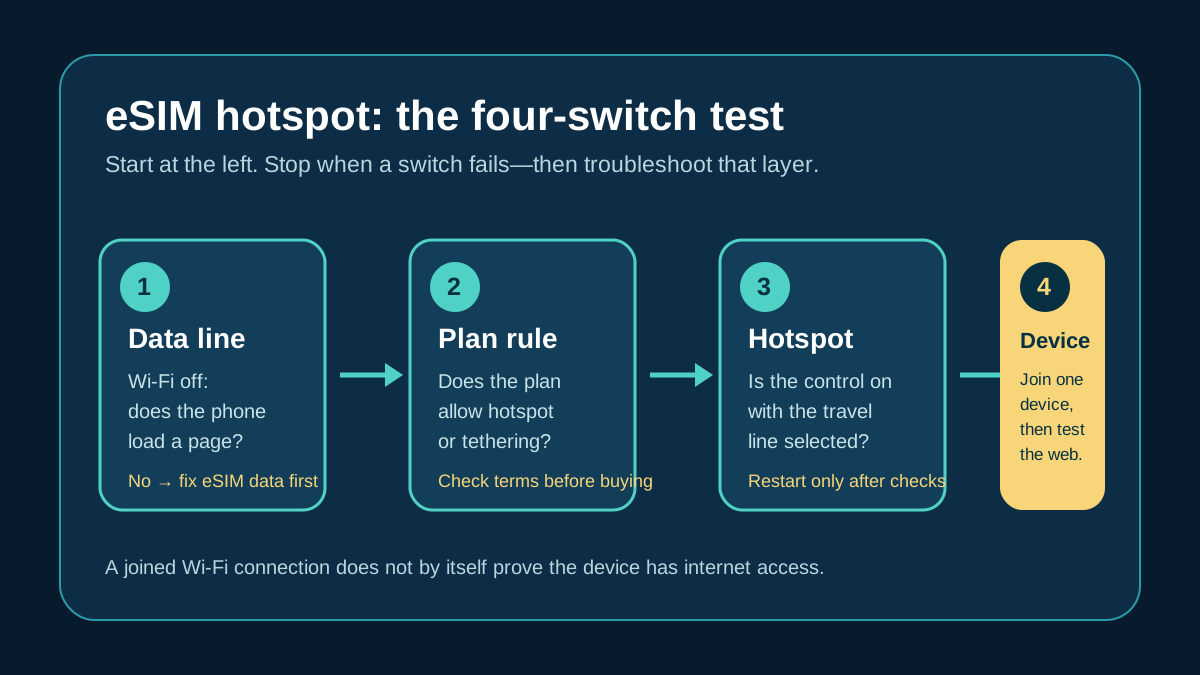
The four-switch test
Check one layer at a time
- Data line: turn Wi-Fi off and open a fresh page on the phone. If this fails, troubleshoot the eSIM connection before sharing it.
- Plan permission: look for hotspot, tethering, personal hotspot, or fair-use wording for the exact plan.
- Hotspot control: confirm the travel eSIM is selected for cellular data, then enable the phone's hotspot.
- Receiving device: join one laptop or tablet and load a page. A joined Wi-Fi network alone does not prove internet access.
Apple says Personal Hotspot shares the cellular-data connection and, on a dual-SIM iPhone, uses the line selected for cellular data. Android documents Wi-Fi, Bluetooth, and USB tethering and warns that some operators limit or charge for it.
Before you buy
Ask for the hotspot rule, not an unlimited promise
Do not assume that an unlimited-style plan gives unlimited high-speed sharing. A plan may deduct tethering from the regular allowance, give it a separate allowance, reduce speed after a threshold, or omit the policy entirely. If you need to work from a laptop, record the hotspot rule before checkout and keep the provider's support route offline.
| Check | Keep the plan when | Verify when |
|---|---|---|
| Hotspot permission | The exact plan explicitly allows tethering. | Hotspot is restricted, prohibited, or absent from the plan details. |
| Data policy | The stated allowance fits phone and shared-device use. | “Unlimited” lacks a readable high-speed or fair-use rule. |
| Support path | You can reach instructions and help without the app. | The recovery route is not clear before travel. |
Setup
Use the travel line, then share it
On iPhone
Select the travel eSIM for Cellular Data, confirm that mobile data works with Wi-Fi off, then open Settings > Personal Hotspot and enable Allow Others to Join. If the control is absent or cannot be enabled, Apple says availability can depend on the carrier and plan.
On Android
Select the travel eSIM for mobile data, verify that the phone itself is online, then turn on Wi-Fi hotspot. Menu labels vary by device; Google's instructions also describe Bluetooth and USB tethering. Start by testing one receiving device.
When it fails
Match the fix to the failure state
| What you see | Next useful check |
|---|---|
| The phone has no mobile data | Check eSIM activation, roaming/data instructions, coverage, and provider support. |
| The phone has data but hotspot is unavailable | Check the selected mobile-data line and whether the plan/operator permits tethering. |
| The device joins but cannot browse | Reconnect one device, compare with a second device if possible, then inspect plan rules and that device's VPN or saved-network settings. |
| One device works and another does not | The eSIM is less likely to be the cause; inspect the offline device's network settings. |
Apple's official first steps for a failing Personal Hotspot are to confirm it is on, restart both devices, and update the software. Use a network-settings reset only after simpler checks, because it can remove saved network settings.
Use data deliberately
Protect the connection, battery, and allowance
Hotspot use does not create extra data. Laptops can quietly sync files, update software, back up photos, or stream at high quality. Pause large updates, use a strong password, connect only expected devices, keep the phone charged for longer use, and turn the hotspot off when finished.
FAQ
eSIM hotspot questions
Can a non-eSIM phone join an eSIM hotspot?
Yes. The receiving device connects to Wi-Fi and does not need eSIM support.
Why does my eSIM work on my phone but not on my laptop?
Test the travel line on the phone first. If it works, check plan permission, the selected mobile-data line, the hotspot control, and the receiving device separately.
Do all travel eSIM plans include hotspot sharing?
No. Confirm the exact plan's hotspot or tethering rule before relying on it.